
Task center
Follow the original product screenshots to set topics and interactions, then inspect interest-browsing tasks on Xiaohongshu, Douyin, and Bilibili.
01 · Choose a platform and profile
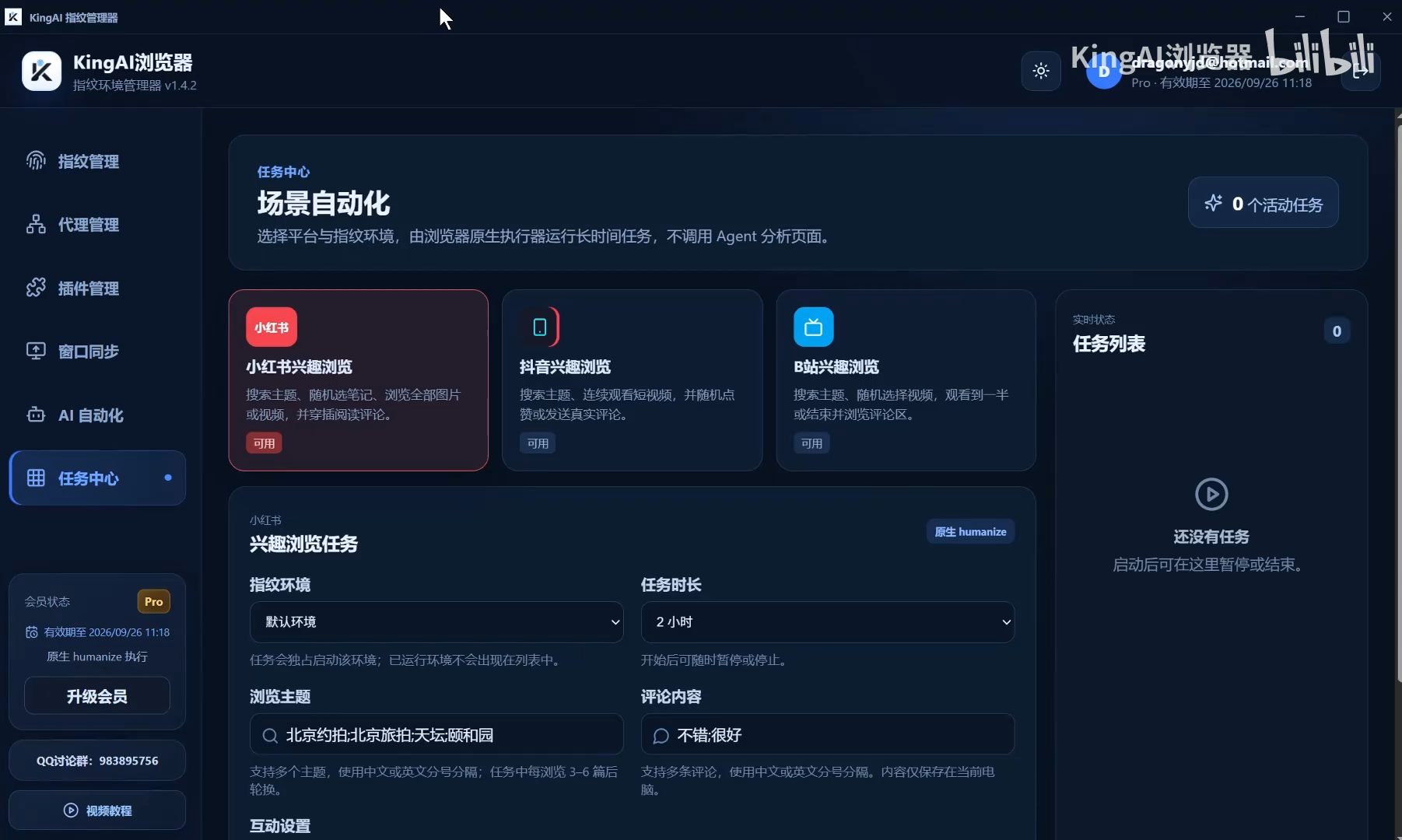
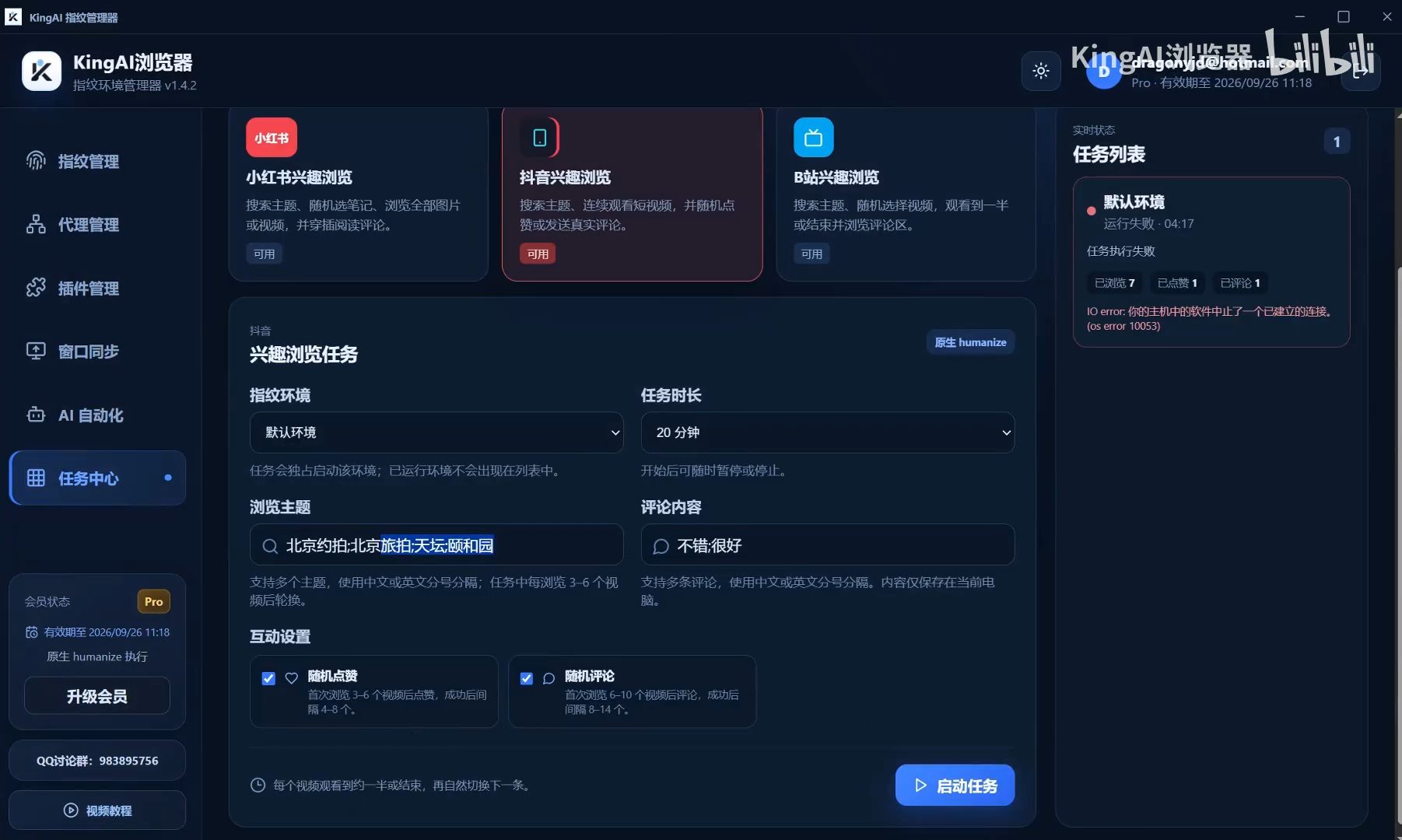
Open Task center in the fingerprint manager. Choose Xiaohongshu, Douyin, or Bilibili interest browsing, then select a profile and duration. Enter one or more topics separated by Chinese or English semicolons. Optional comments can also be separated this way; the Random like and Random comment switches control interactions.
02 · Xiaohongshu: search and browse posts
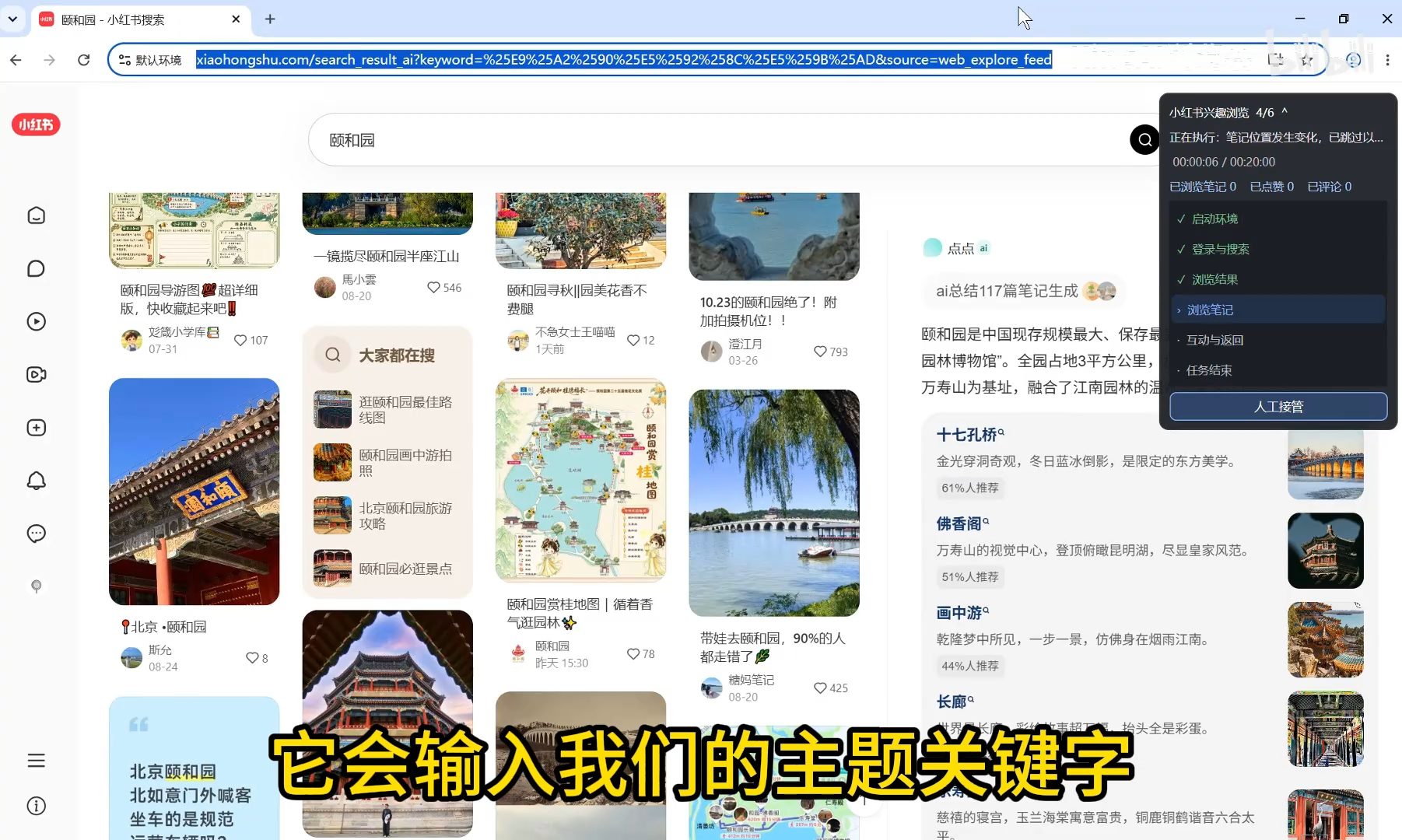
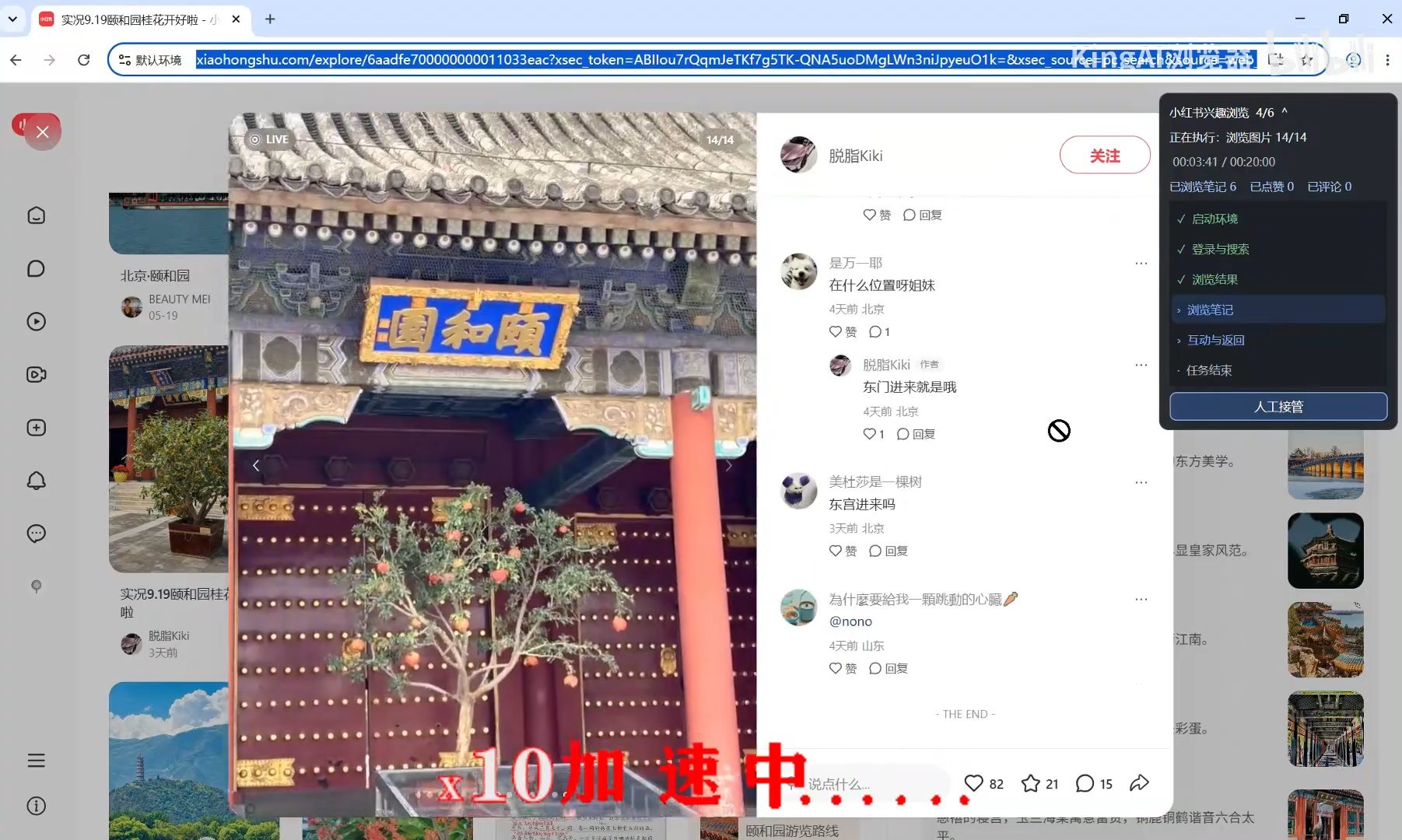
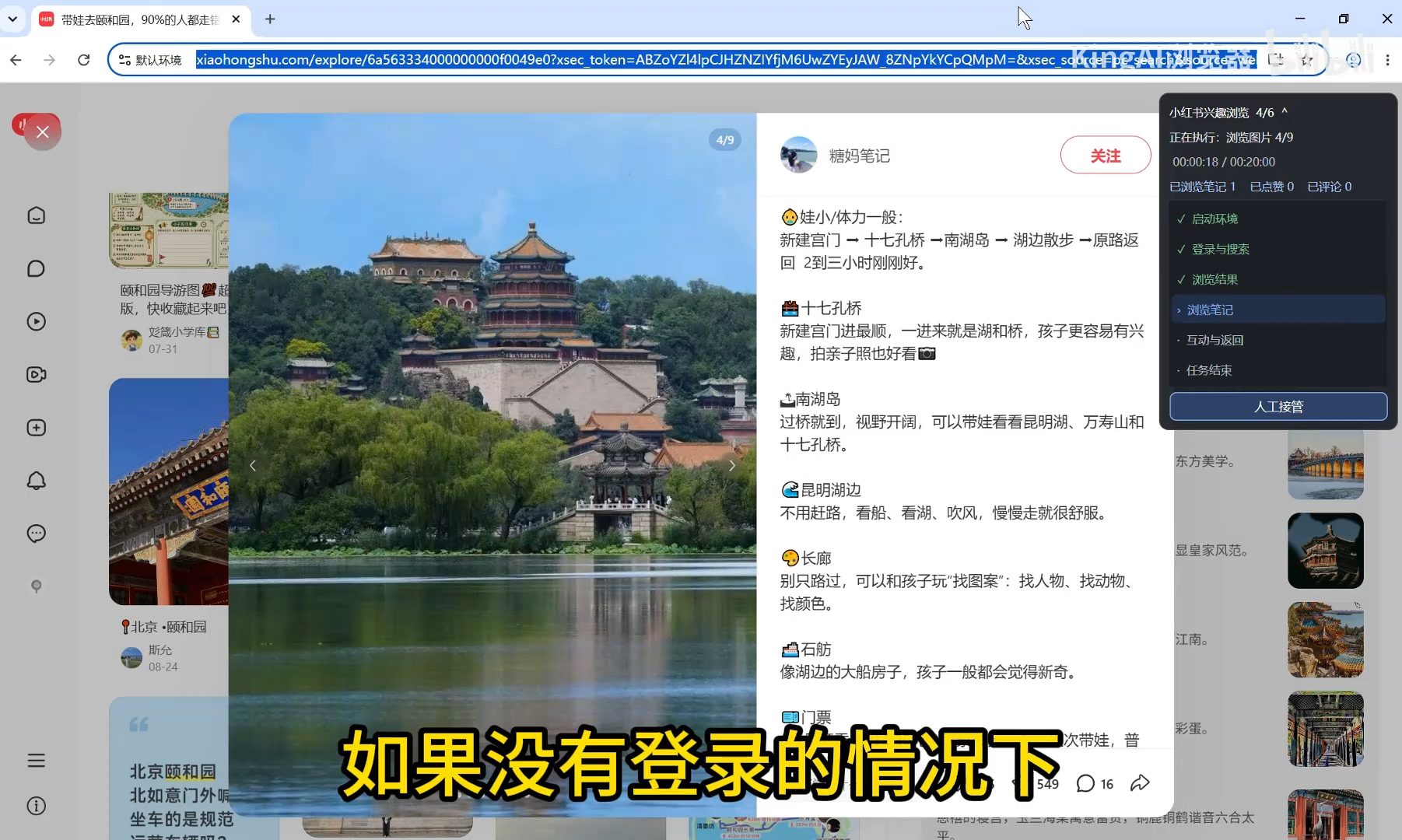
The demonstration searches for Summer Palace posts, opens them, browses images, and reads comments. The running panel shows the current step and counters. If login or another manual action is required, use Manual takeover and resume when ready.
03 · Douyin: watch videos by topic
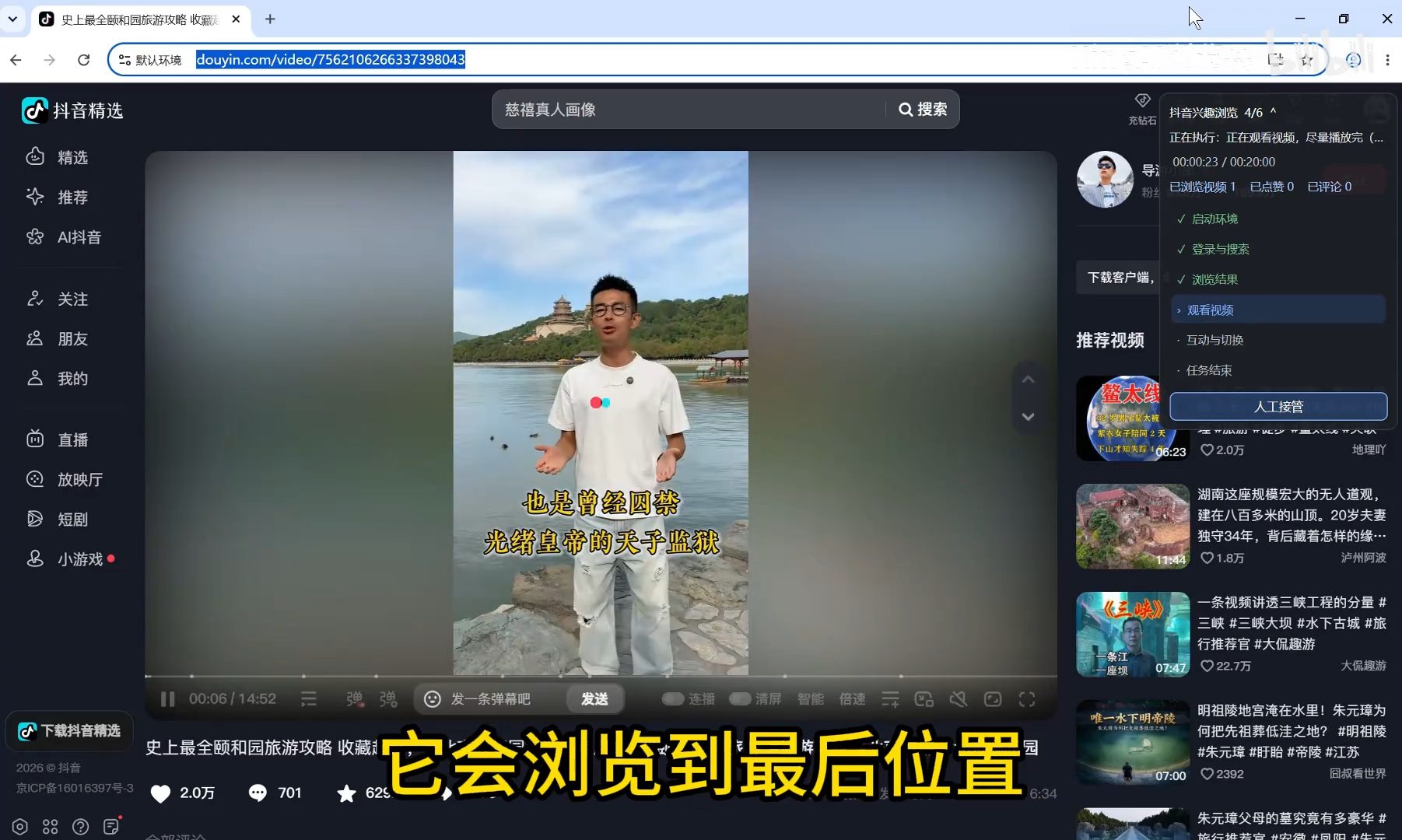
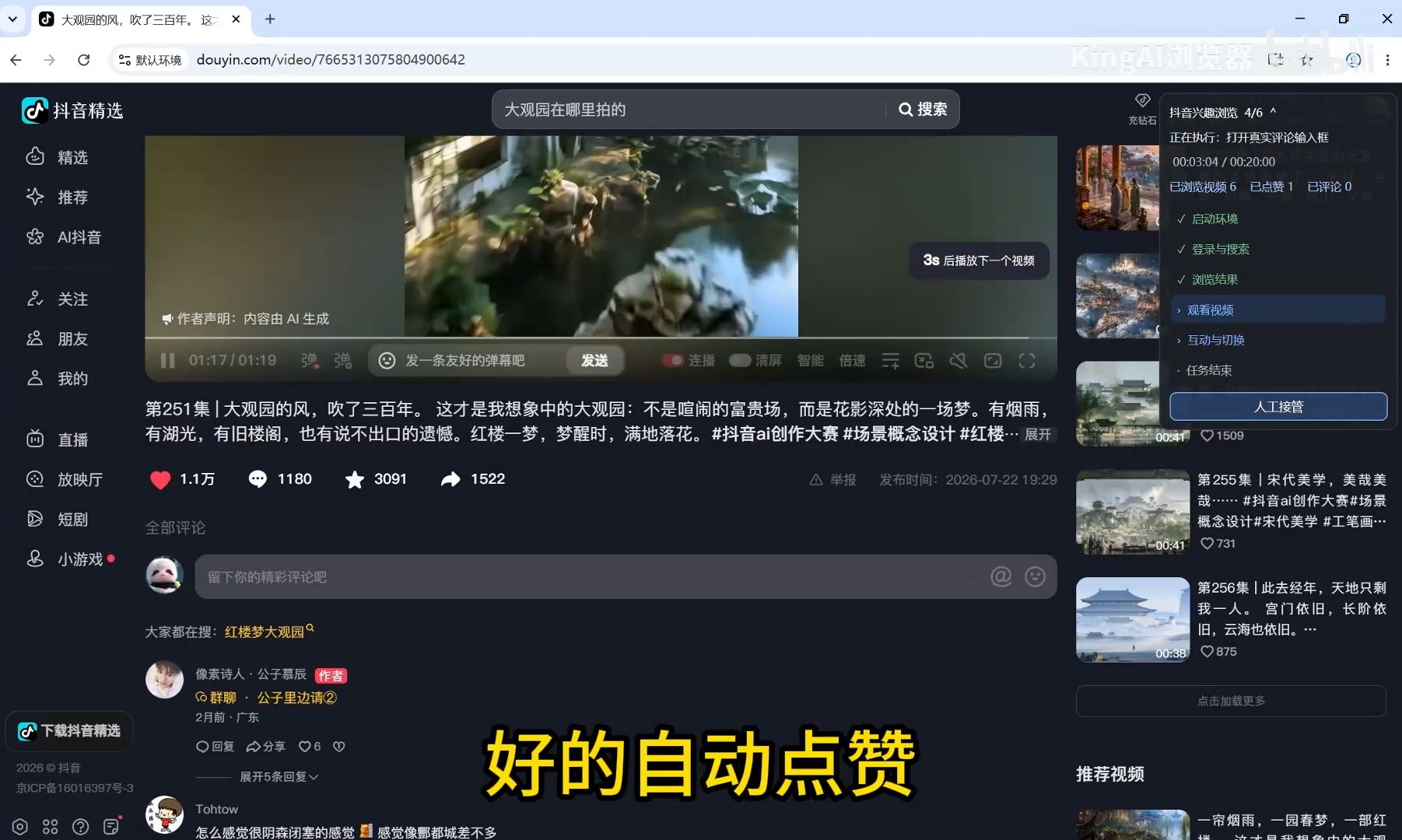
Choose Douyin interest browsing and set the same topic, duration, and interaction fields. The task searches for short videos, watches each one, and switches to the next. The screenshots show playback progress and an optional like.
04 · Bilibili: watch and inspect task results
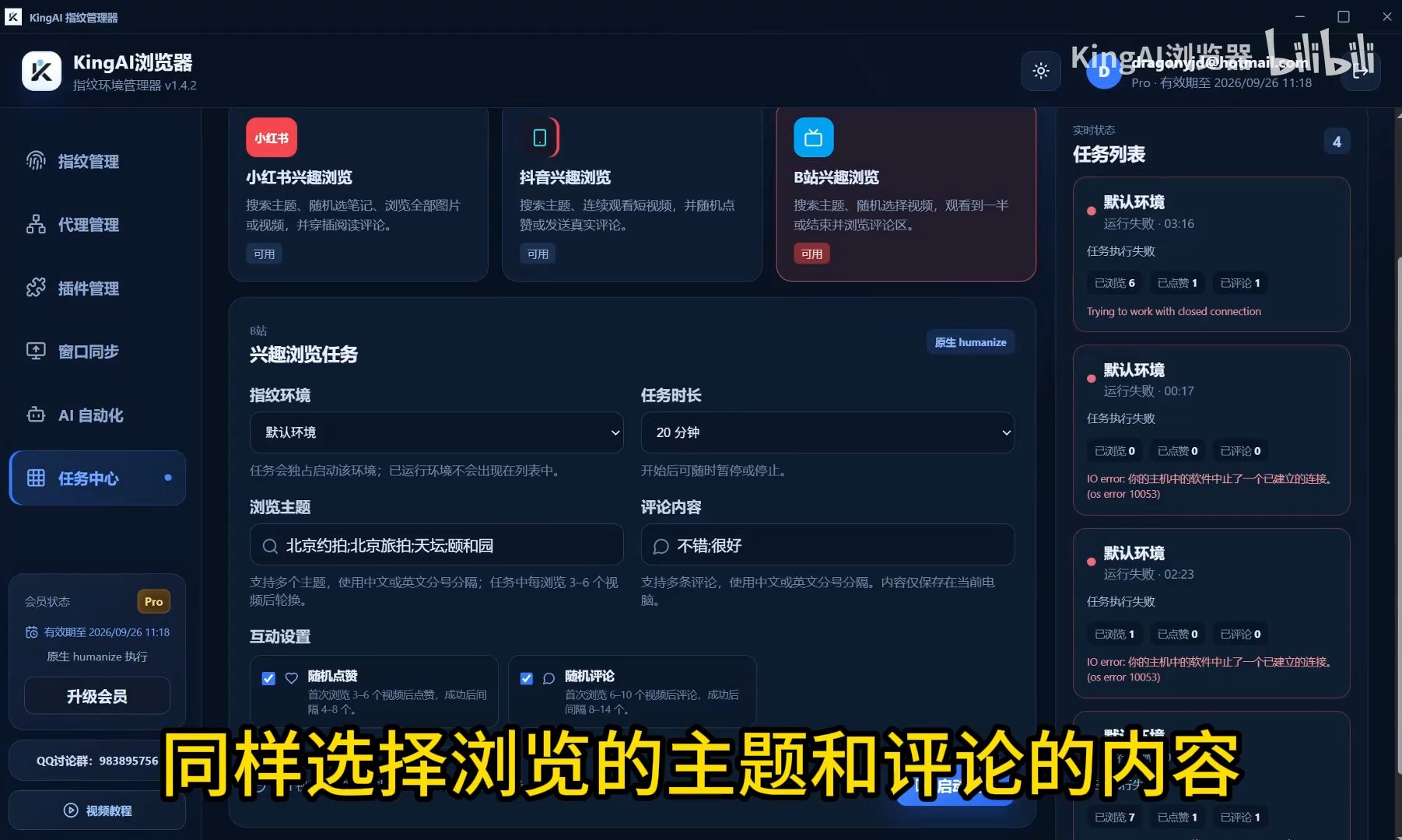
The Bilibili task uses the same settings. The running panel shows video viewing and interaction steps. In the manager task list, review each task status and viewed, liked, and commented counts; a failed task also shows its reason.

Common questions
- The task needs manual help?
- Open the browser from Manual takeover, handle the login or prompt, and resume according to the running panel.
- Where are task outcomes shown?
- The task list shows status and viewed, liked, and commented counters. Failures include a reason.
Based on the author’s Bilibili product walkthrough ↗. Original screenshots are preserved and may show Chinese interface labels.
Watch the task center walkthrough
Click play to watch here. The video is narrated in Chinese.
If the player cannot load, open the video on Bilibili ↗