
Record web video
Record supported web videos and live streams without an extra extension. When recording ends, the file is saved on your computer.
01 · Find the recording control
Open a video page and start playback. Hover over the video area. When the browser detects a supported player, a Start recording control appears above it. The control follows the player as you scroll without covering the picture.
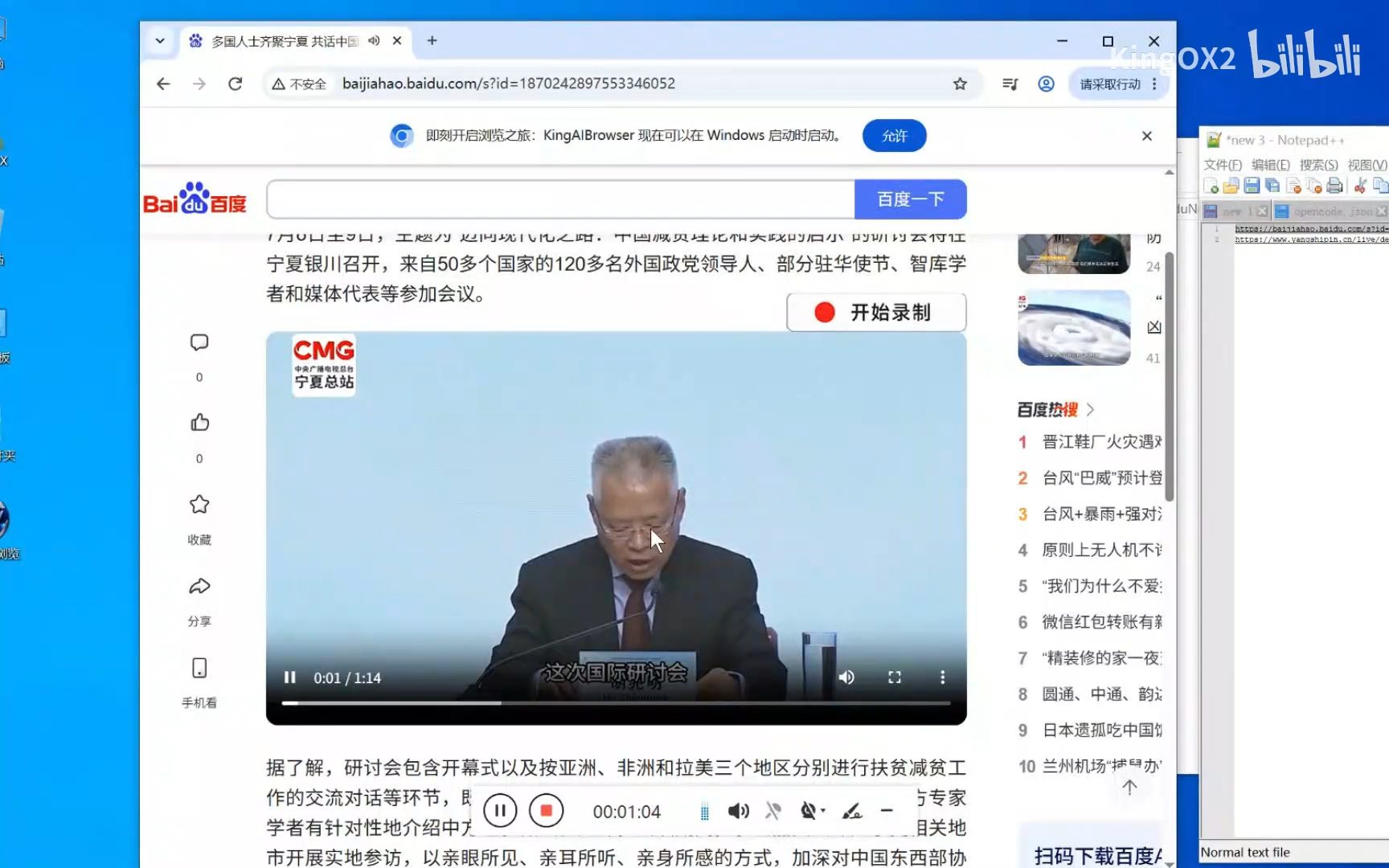
02 · Read the notice and start
Click Start recording. On first use, read the disclaimer and decide whether to accept it. Once accepted, recording starts and the control changes to Stop. Your acceptance is saved locally.
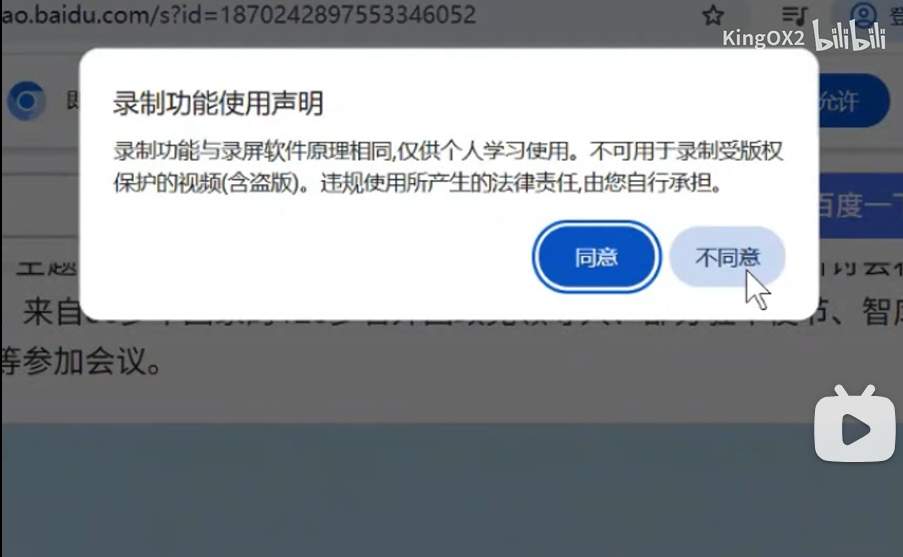
03 · Stop and find the saved file
- 01
Hover over the player again and click Stop recording. Wait for the browser to finish writing the file.
- 02
Read the completion notification: it includes the full output path.
- 03
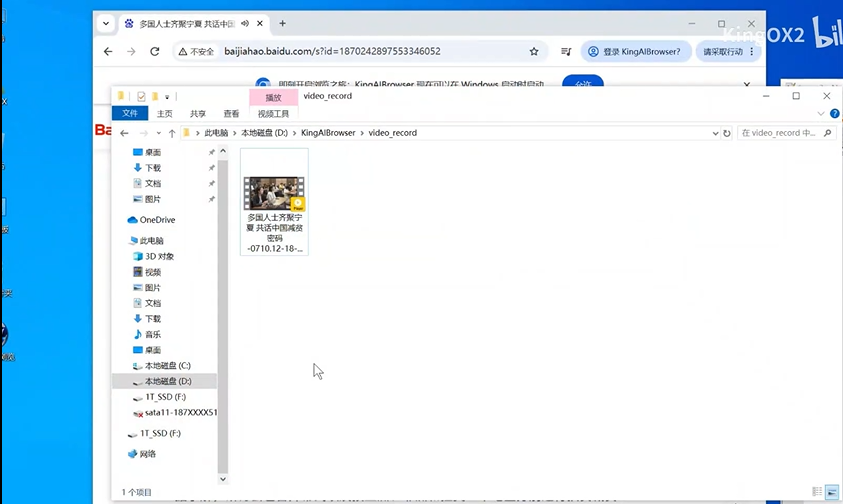
Open that path and play the file locally. On Windows, recordings are stored in video_record beside KingAIBrowser.exe.
The screenshot shows the author’s installation at D:\KingAIBrowser\video_record. Your installation may differ; use the path in your completion notification.
04 · Record a live stream
Use the same start–stop–local playback workflow on supported live streams. Record a short sample first and check both picture and sound before continuing.

Common questions
- No recording control?
- Start playback, then hover over the player. This feature primarily supports HTML <video>; Canvas, WebAssembly, and some specialized players are outside its current scope.
- Why did recording stop after navigation?
- Refreshing, navigating, closing a tab, or destroying the player automatically ends recording and releases resources. Replacing a live stream’s underlying media tracks may also end the task.
- Are protected videos supported?
- DRM-protected content is not guaranteed to work. Follow the usage notice and the rights applicable to the content.
Watch the recording walkthrough
Click play to watch here. The video is narrated in Chinese.
If the player cannot load, open the video on Bilibili ↗