
AI automation
Follow the product screenshots to record and parameterize a Skill, debug replay, and connect an Agent through the manager.
01 · Record a workflow
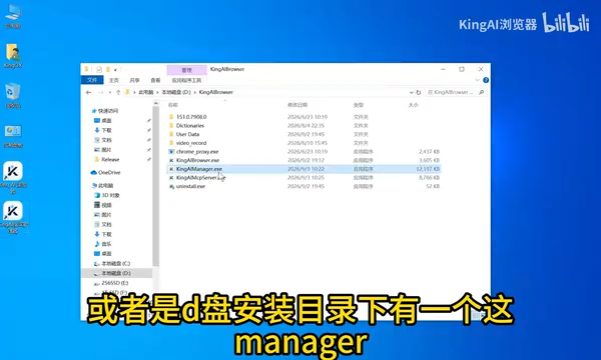
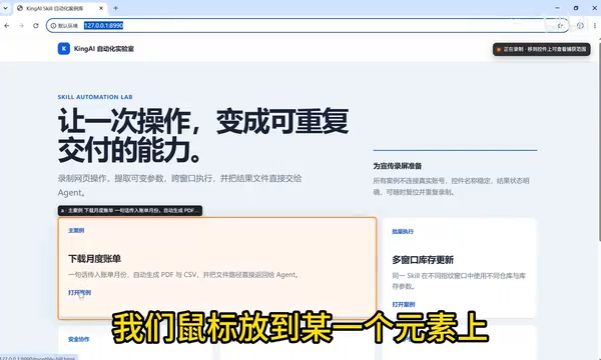
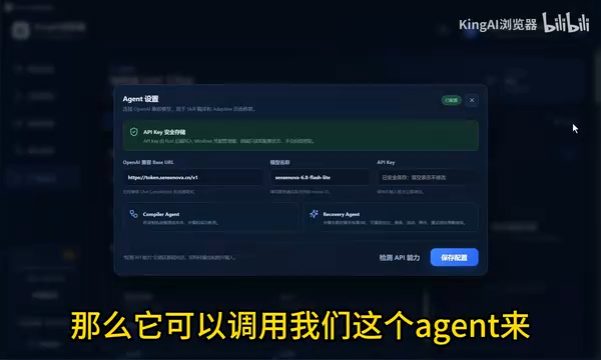
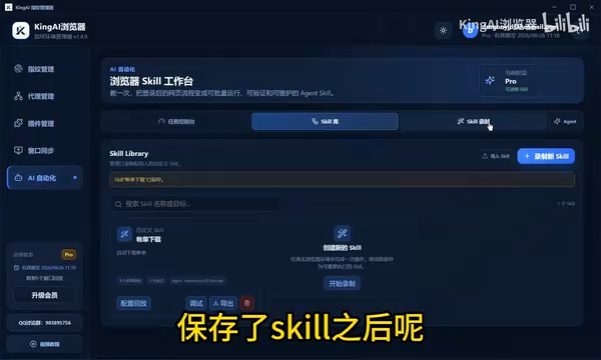
Open the fingerprint manager and AI automation. The article records a bill-download flow: select a month and click the download button. Target elements are highlighted while recording. Agent model configuration is optional for recording; it helps adaptive recovery after page changes.
02 · Parameterize and replay
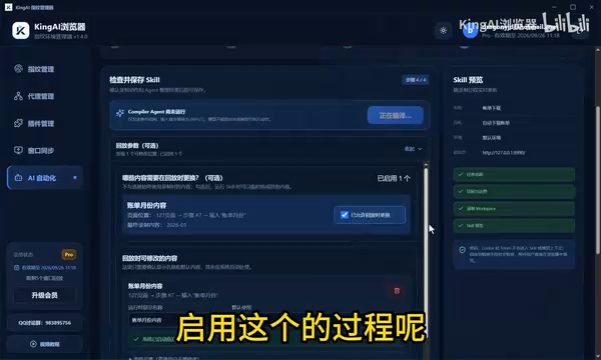
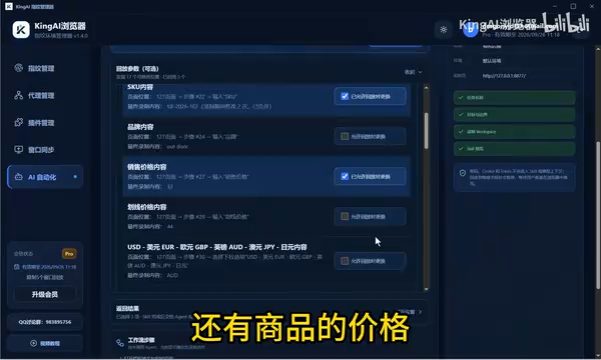
Mark changing fields, such as the bill month, as parameters. Save the Skill, select a profile, supply the values, and watch progress in the task panel.
03 · Call a saved Skill through Agent integration
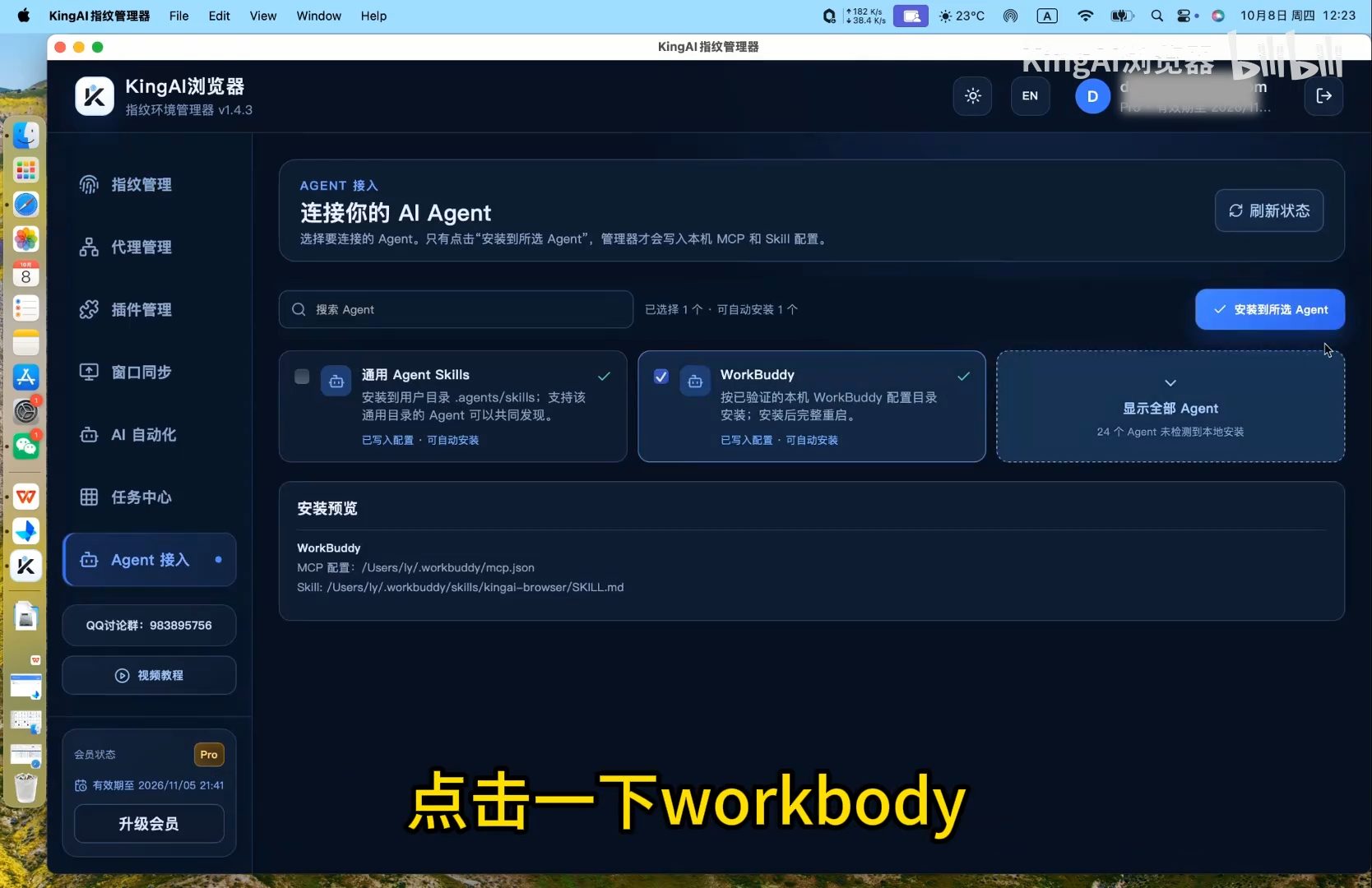
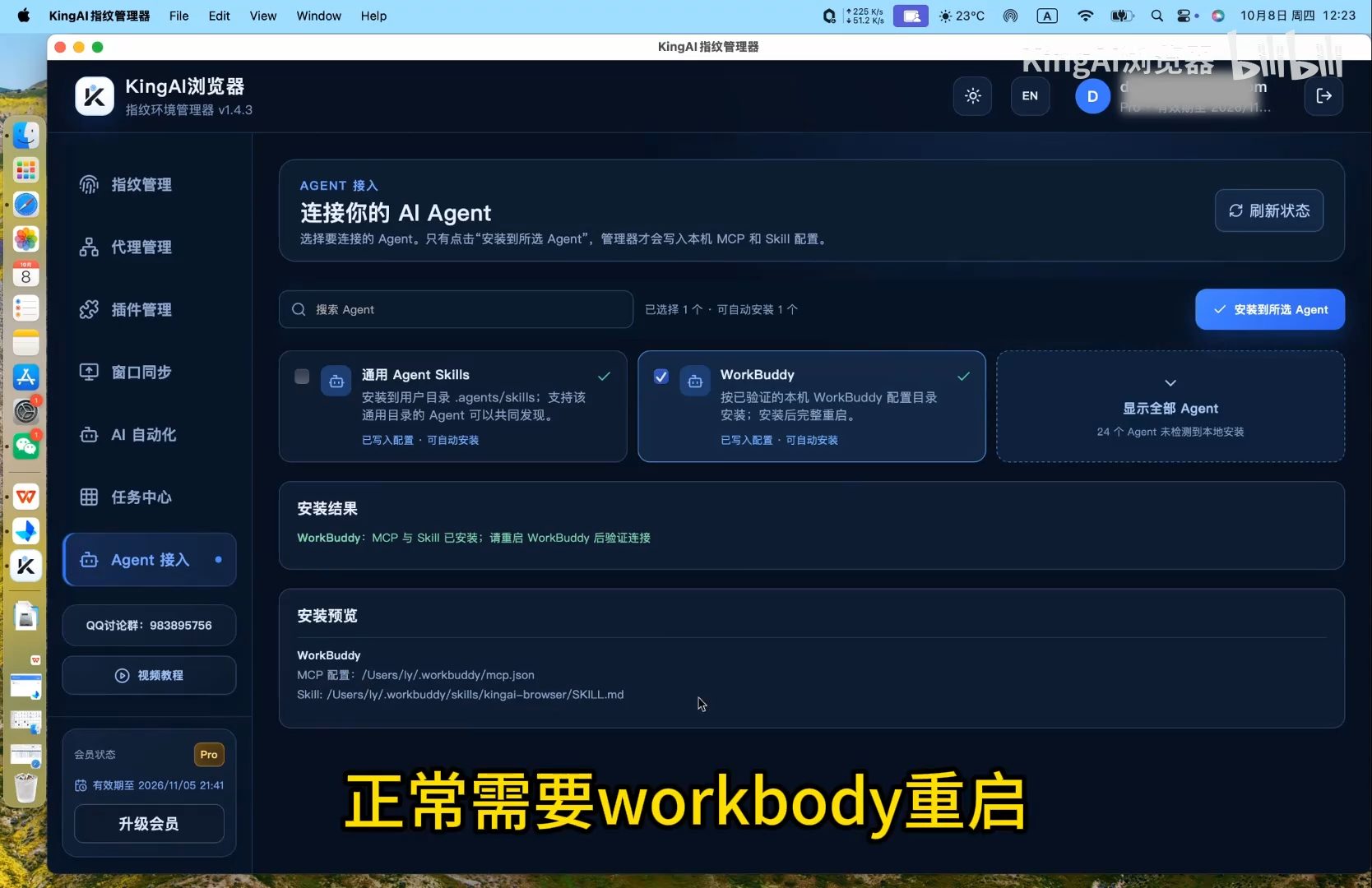
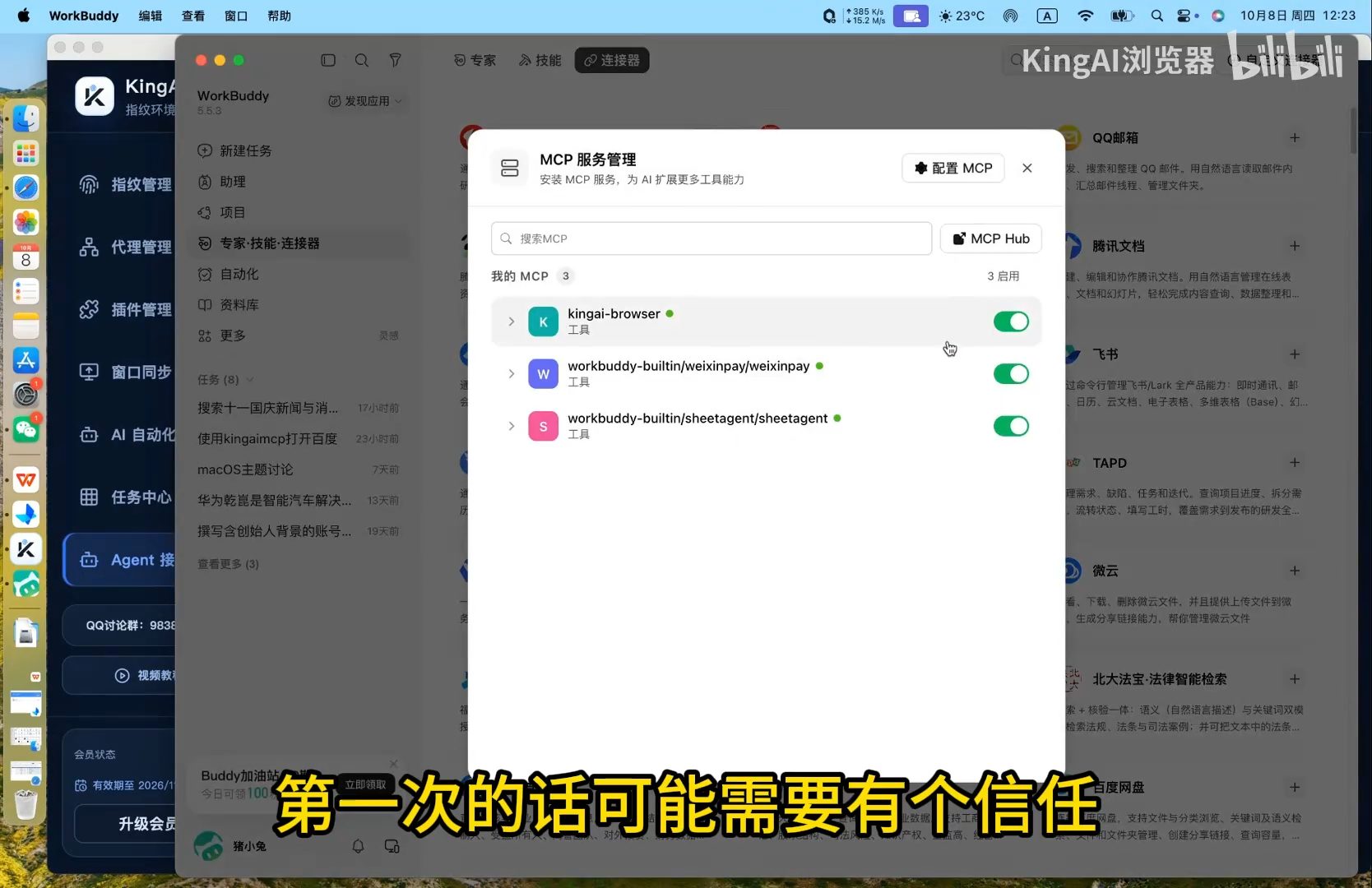
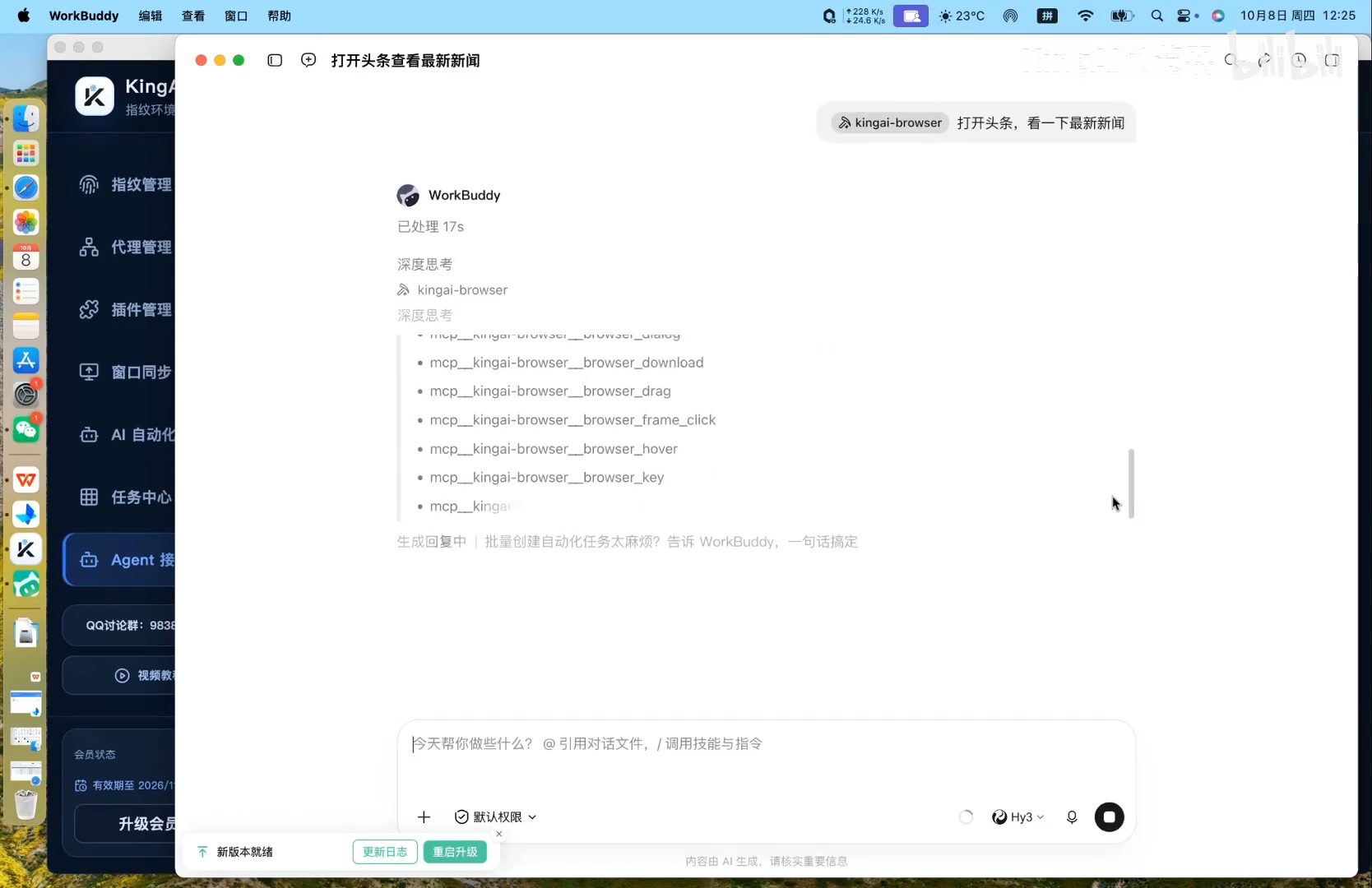
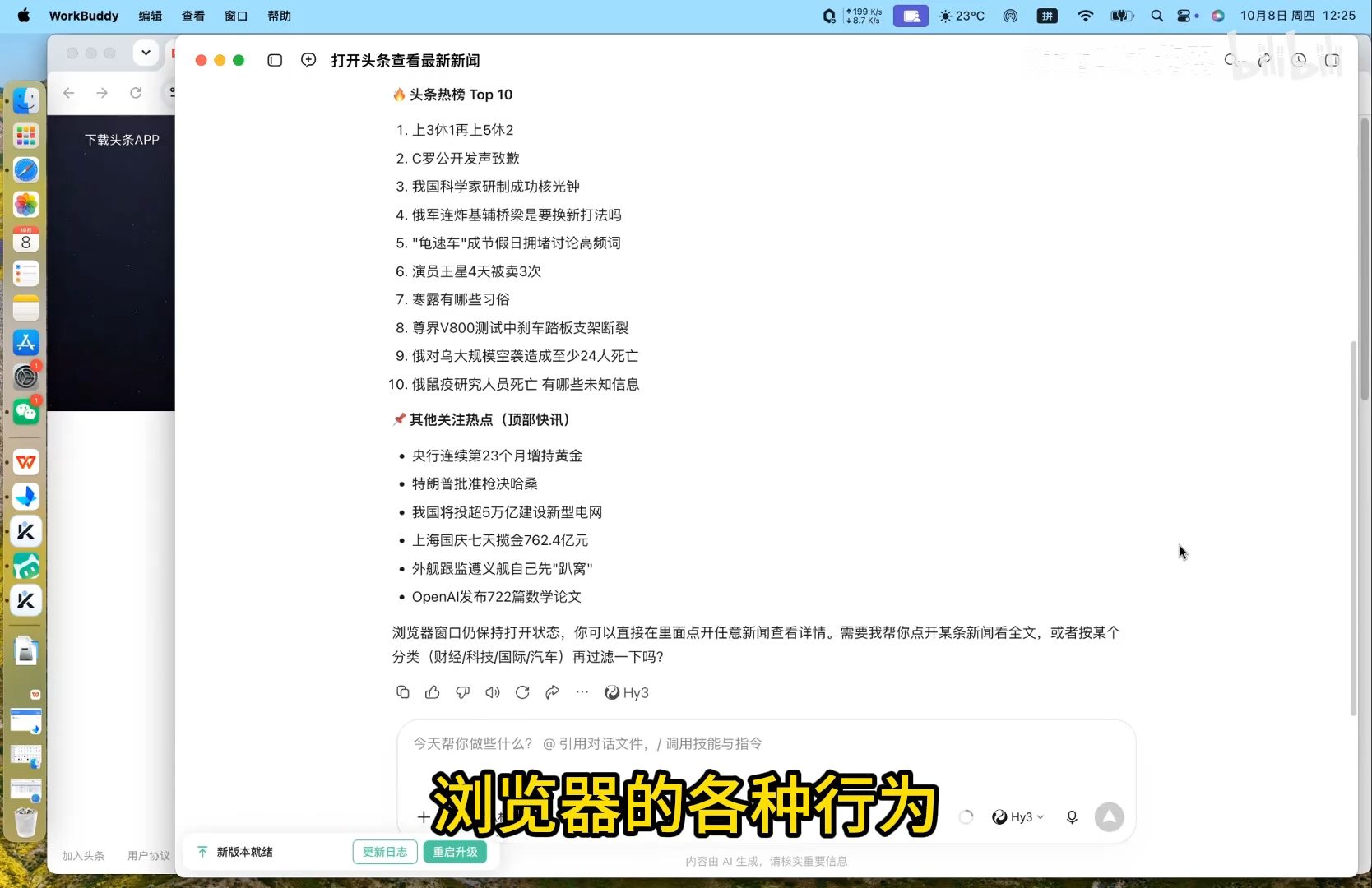
In the fingerprint manager, open Agent integration, select WorkBuddy, review the installation preview, and click Install to selected Agents. Restart WorkBuddy after success. On first use, trust and enable the kingai-browser connector. The screenshots show an Agent opening Toutiao and returning results. To call your saved Skill, give the Agent its name, target profile, and parameter values, then inspect its tool activity and reply.
04 · Debug complex steps and page changes
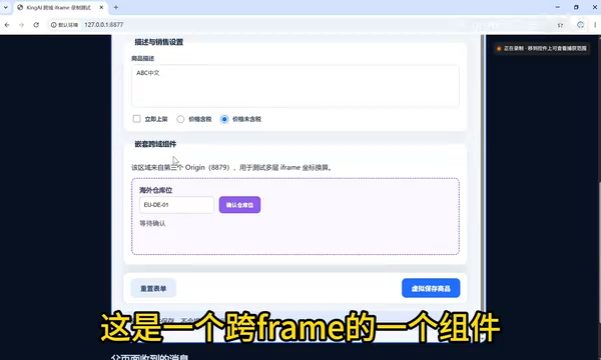
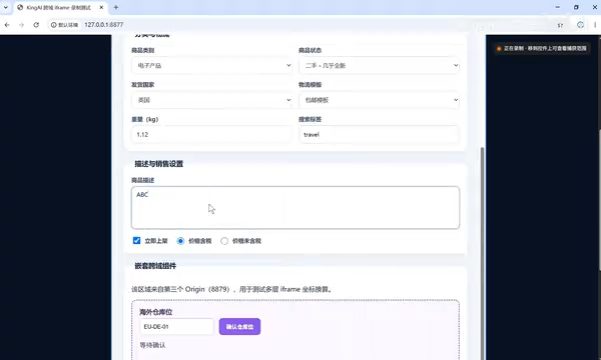
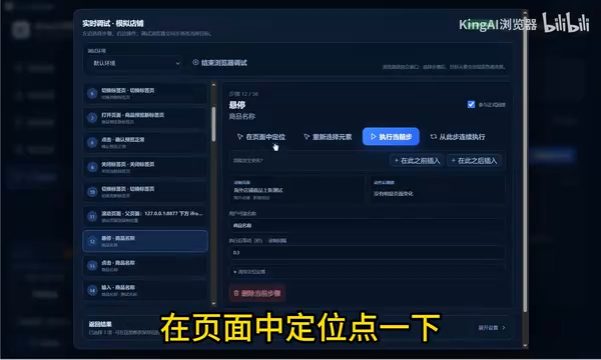
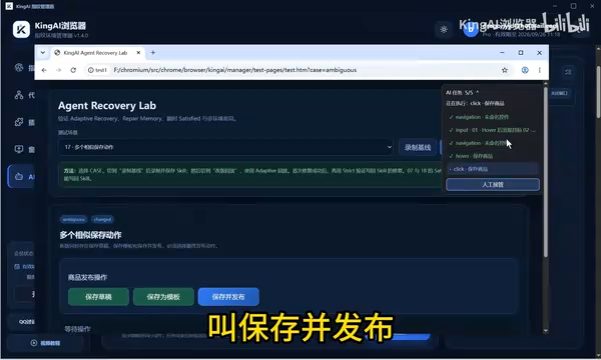
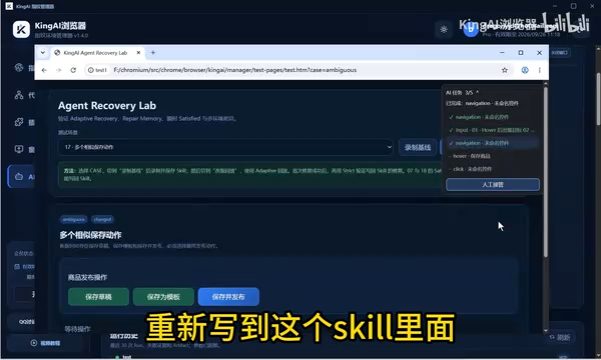
Skills can navigate, click, type, select, and operate inside an iframe. Mark only changing fields as parameters. In the debugger, inspect a failing locator, highlight, and wait time. Adaptive replay can identify a changed button label using a configured model; save a verified repair for later strict replay.
Common questions
- Does recording require an Agent?
- No. Configure the model when you want adaptive recovery.
- Replay stopped at a step?
- Open the debugger, inspect the target and wait time, then save and retry after verifying the correction.
Based on the author’s Bilibili product walkthrough ↗. Original screenshots are preserved and may show Chinese interface labels.
Agent integration screenshots are from sections 4 and 5 of the Agent integration walkthrough ↗.
Watch the Skill automation walkthrough
Click play to watch here. The video is narrated in Chinese.
If the player cannot load, open the video on Bilibili ↗