
Configure a proxy
Choose between a proxy address you already have and an API that returns one. Then choose how the browser reaches that proxy and assign it to a profile.
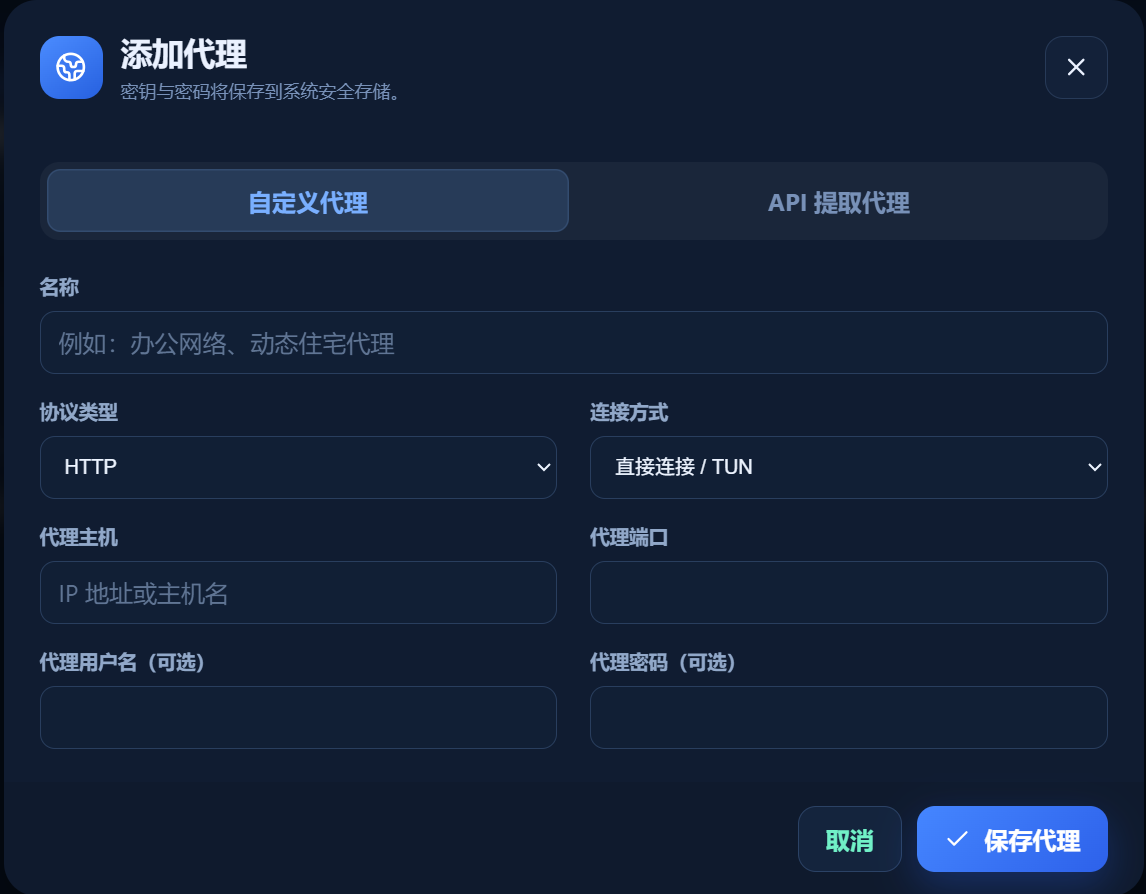
01 · Custom proxy: you already have a host and port
Enter the proxy host, port, and any required username and password. The saved endpoint is reused until you edit it. Custom proxies support HTTP, HTTPS, and SOCKS5.
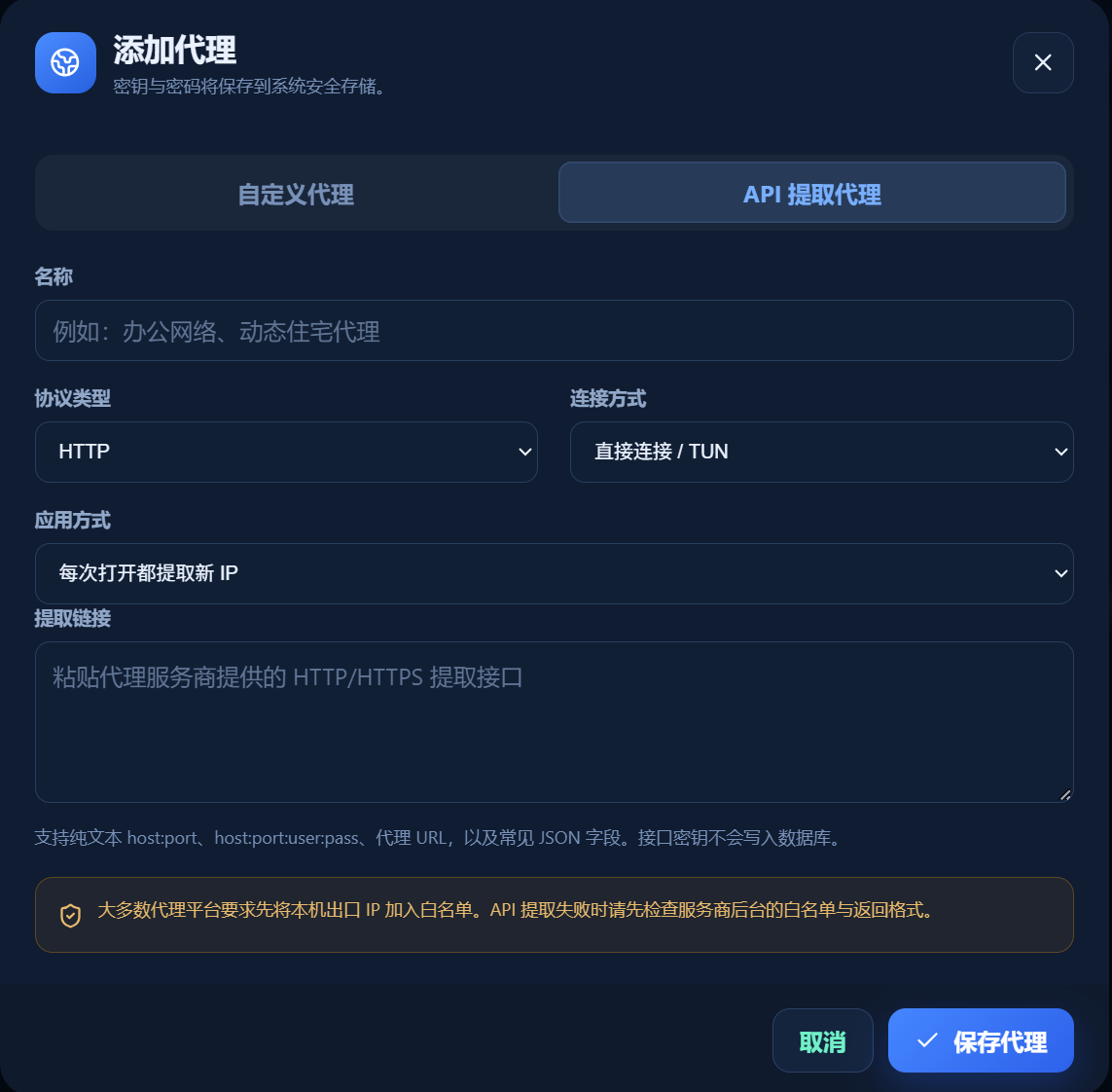
02 · API proxy: your provider gives you an extraction URL
Enter the provider’s HTTP/HTTPS extraction URL. The manager requests that URL and parses the proxy endpoint it returns. The extraction URL fetches an endpoint; it is not the browser proxy endpoint itself. API mode supports HTTP or SOCKS5 proxy protocols.
03 · Choose a connection mode
- 01
Direct connection / TUN: browser → selected proxy endpoint → website. Normal OS routing is used to reach the endpoint. An active TUN interface may carry that connection, but the manager does not explicitly chain through the system HTTP proxy.
- 02
Via system-wide HTTP proxy (two-hop proxy): browser → local relay → system HTTP proxy → selected profile proxy → website. The manager uses HTTP CONNECT from the first proxy to the selected endpoint. Normally the website sees the second proxy’s exit IP. On Windows, a manual system HTTP proxy must be enabled; TUN alone or only a PAC script does not satisfy this mode.
04 · Choose an API application mode
- 01
Extract a new IP on every launch: request the provider API each time a profile starts and use that response. A failed API request can prevent launch. The provider may still return the same public IP.
- 02
Extract once, then use cache: request the API when you click Save proxy, then reuse the saved endpoint on later launches. Edit and save the proxy again to refresh an expired endpoint. Reusing an endpoint does not guarantee that its public exit IP stays unchanged.
05 · Save, check, and assign
- 01
Open Proxy management → Add proxy, fill in the selected type and connection mode, and save.
- 02
Click Test in the proxy list. For a custom proxy, this checks connectivity. For an API proxy, the default list test only checks whether an endpoint can be extracted; it does not prove browser traffic can reach a website through that endpoint.
- 03
Open the target profile’s Settings → Region and proxy, select the saved proxy, and save. Optionally enable automatic region sync and query the exit time zone.
- 04
Close any running browser for that profile, relaunch it, and verify its actual exit IP in the browser.
Common questions
- Two-hop mode reports no system proxy?
- On Windows, enable a valid manual system HTTP proxy. A TUN interface or a PAC script alone is not the HTTP proxy setting this mode reads. The first hop must support CONNECT to the second proxy.
- API Test succeeded, but the browser cannot load pages?
- The default API test confirms extraction only. Check the returned endpoint’s protocol, validity, authentication, and allowlist; then verify the actual connection in a launched profile.
- The profile still uses its old exit?
- Saving a proxy and assigning it to a profile are separate steps. Select it in the target profile, save, close that browser, and relaunch.
- The region changed but the time zone did not?
- Check whether synchronization is enabled and the query completed. You can query the time zone again in profile settings and review the language manually.